How to Reconnect Your Sigenergy SigenStor to Wi-Fi
You open the mySigen app and there is no data. The system shows as offline. Before you worry, know this: your battery is almost certainly fine, and you can reconnect your Sigenergy SigenStor to Wi-Fi yourself in a few minutes.
A dropout usually follows a change to your home network, not a fault with the battery. The fix is a short process in the app, with a simple power reset as a backup if the first try does not take.
This guide covers:
- why your SigenStor drops off Wi-Fi
- how to tell if your system is still working
- the step-by-step reconnection process in the mySigen app
- what to do if your phone will not connect to the battery
- how to refit the covers once you are done
- a link at the end to our how to Reconnect Your Sigenergy SigenStor to Wi-Fi video
Why did my SigenStor drop off Wi-Fi?
A SigenStor goes offline when it loses the link to your home network. The most common causes are simple:
- you changed your Wi-Fi password
- you changed your Wi-Fi network name
- you replaced your Wi-Fi router
Any one of these breaks the saved connection. The battery keeps running. It just stops talking to the app, so you lose your live monitoring in the mySigen app until you reconnect it.
Is my battery still working while it is offline?
Yes. While your system is offline it is still working. It is just not uploading data to the app, so what you have lost is the monitoring, not the power.
You can check the light in the 12 o’clock position on the battery. When your system has an active internet connection, that light is lit green. If it is not green, the system does not have an active internet connection.
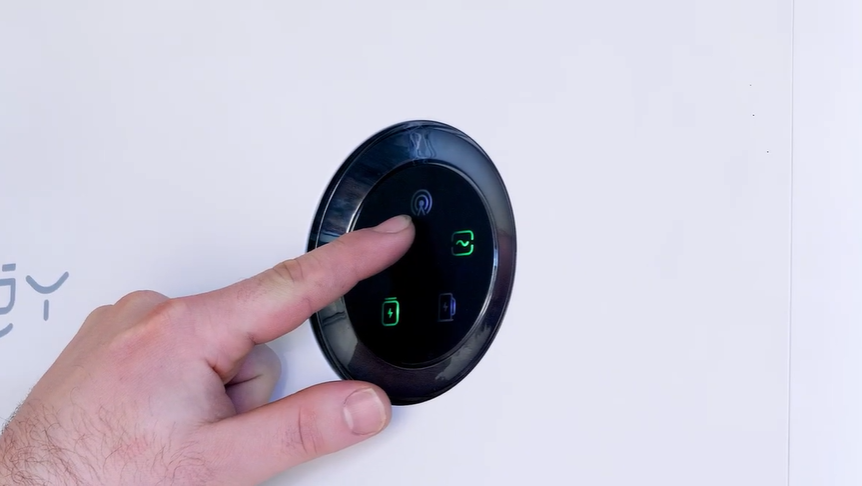
That is your sign to run the reconnection steps below.
How do I reconnect my SigenStor to Wi-Fi?
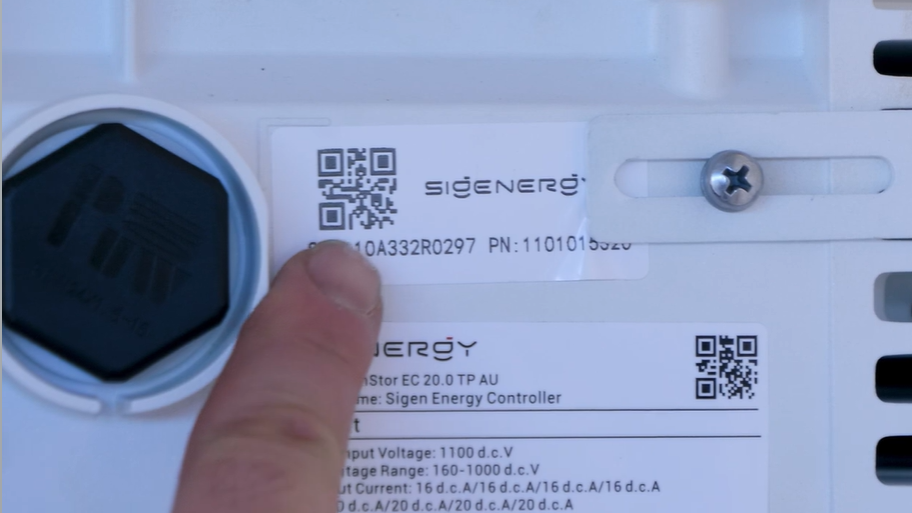
Reconnecting happens through the mySigen app, but first you need to reach the QR code on the inverter.
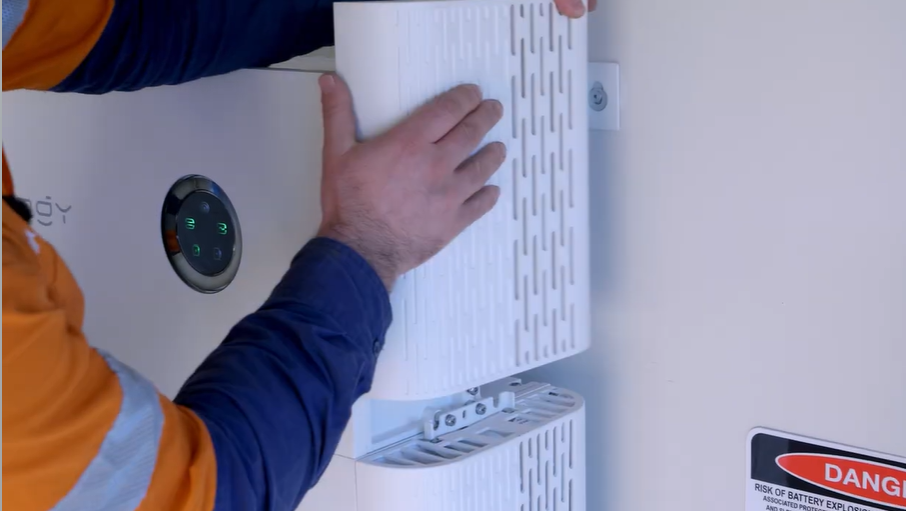
Start by removing two covers:
- Remove the top plastic cover on the inverter. Get your fingers into the groove, place your palms on the front of the inverter, and pull towards you.
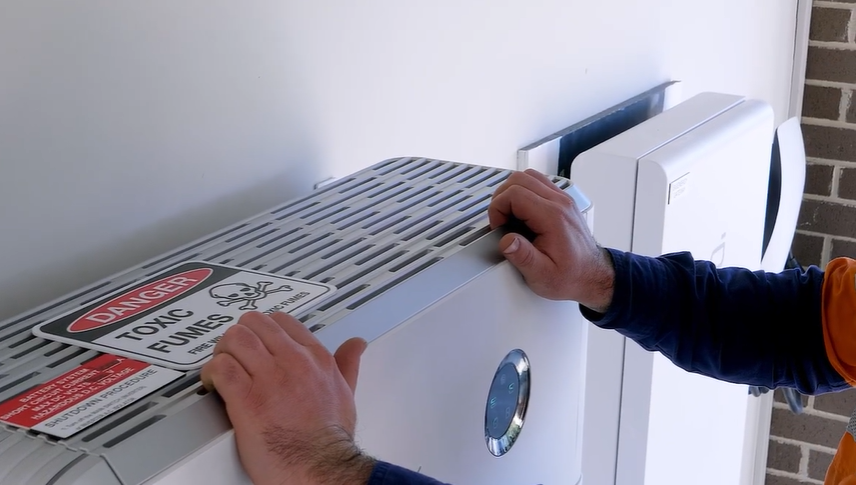
- Remove the right-hand side top plastic cover. You can pull it straight up, firmly and sharply. If that does not shift it, slide a screwdriver or butter knife into the gap and gently pry it upwards.
Now open the app and connect:
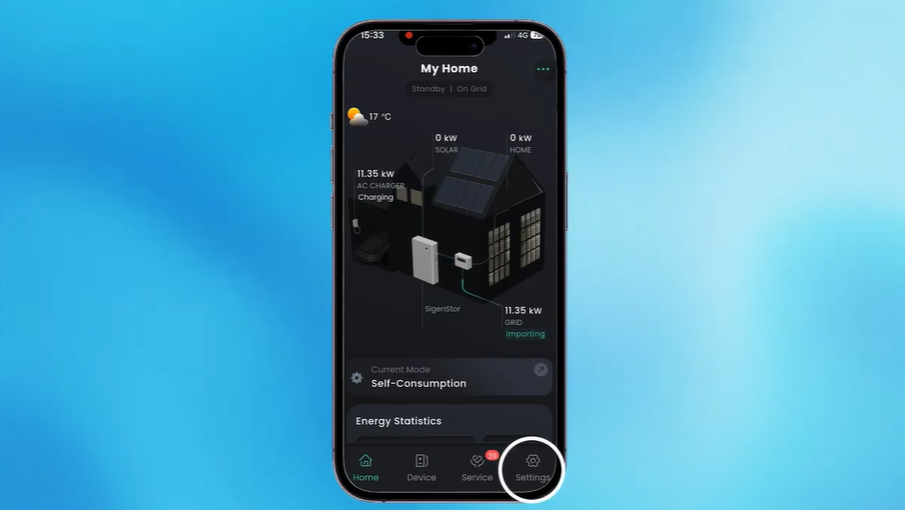
- Open the mySigen app.
- Tap Settings at the bottom.
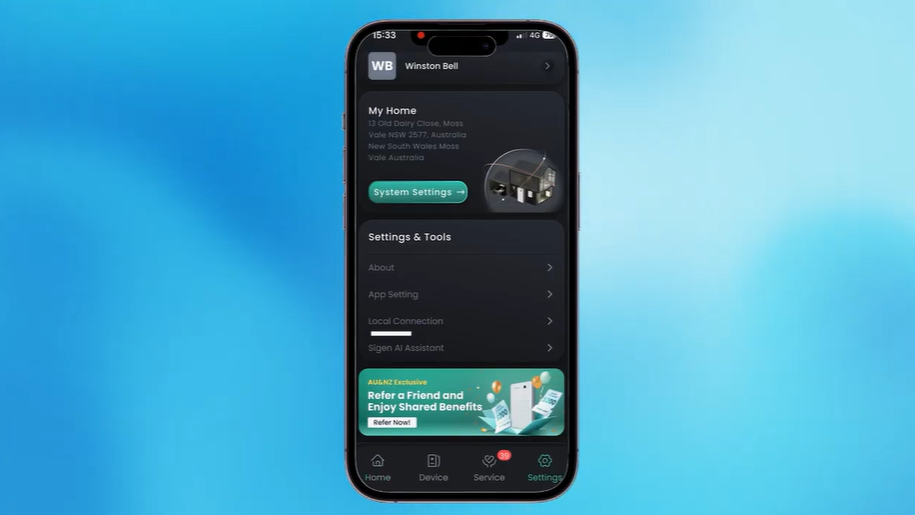
- Select Local Connection.
- Scan the QR code on the battery. Scan the larger top QR code, not the smaller one below it.
- The app shows all available networks. Tap your home network.
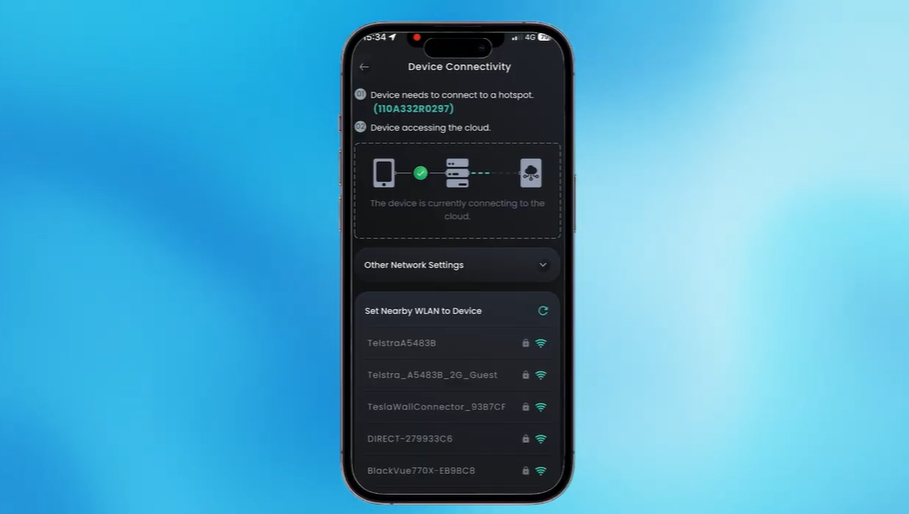
- Enter your Wi-Fi password and tap Join.
- Wait a few seconds. Once it connects, tap Finished.
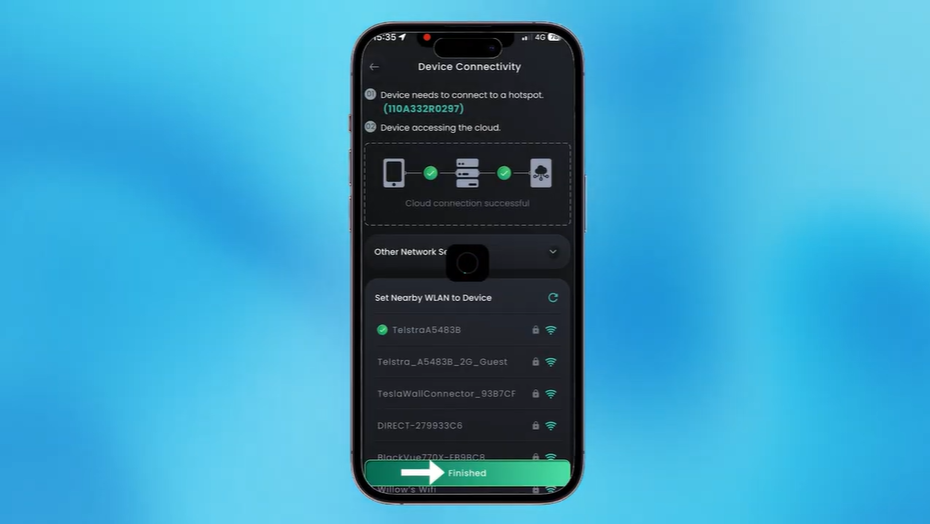
After a few minutes, your system should show as online in the app again.
What if my phone will not connect to the battery?
Sometimes you get an error saying your phone failed to connect to the battery system’s hotspot.
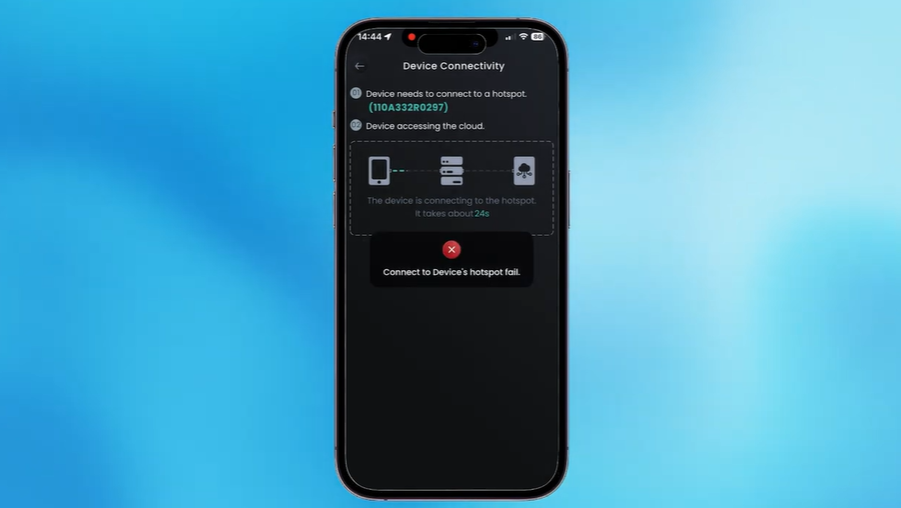
If that happens, you power cycle the battery, which means shutting it off and back on again. This clears most connection errors.
Turn the system off in this order:
- Turn off the AC grid supply. If you have an inverter AC isolator, switch it off
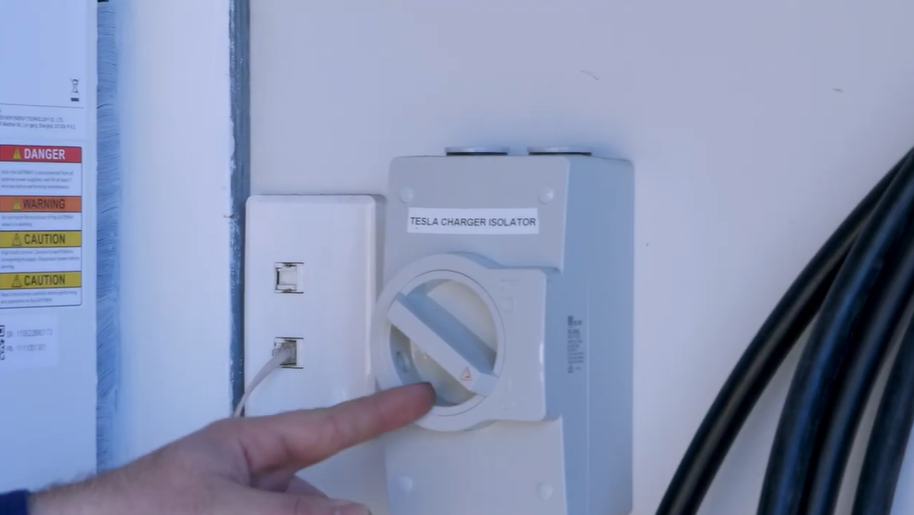
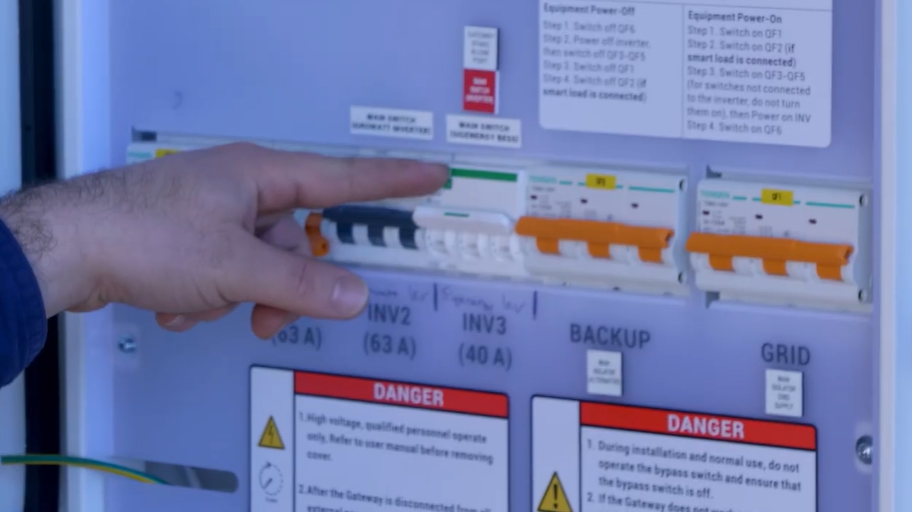
- If you do not have one, open the gateway,
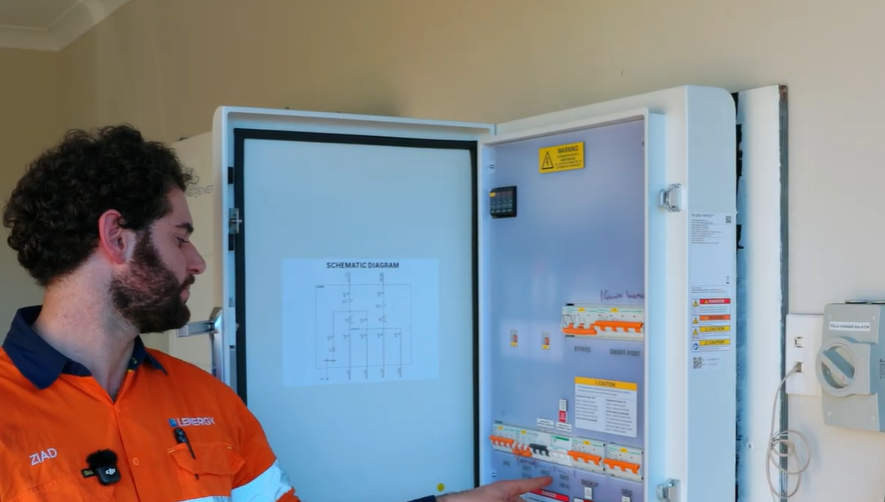
- find the battery system circuit breaker labelled inverter 1, 2 or 3, and switch that off.
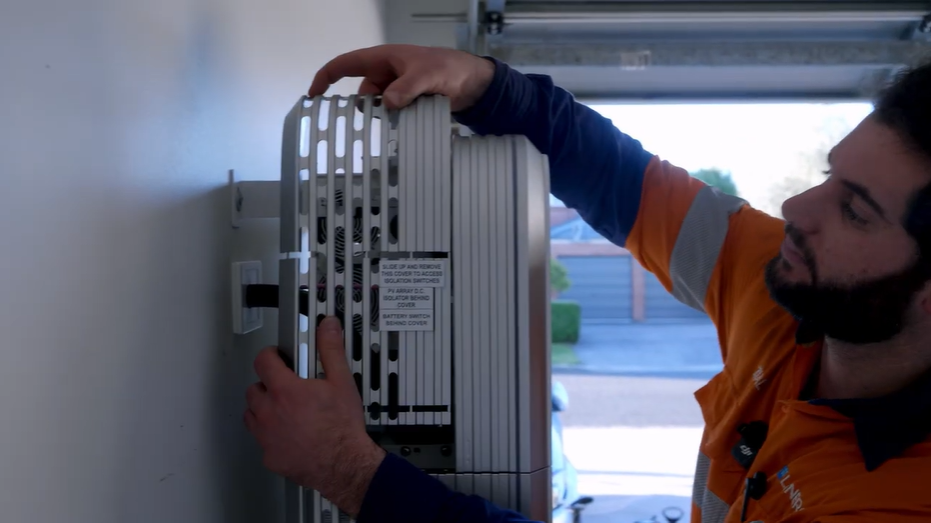
- Remove the plastic covers on the left-hand side of the inverter. They lift straight up.
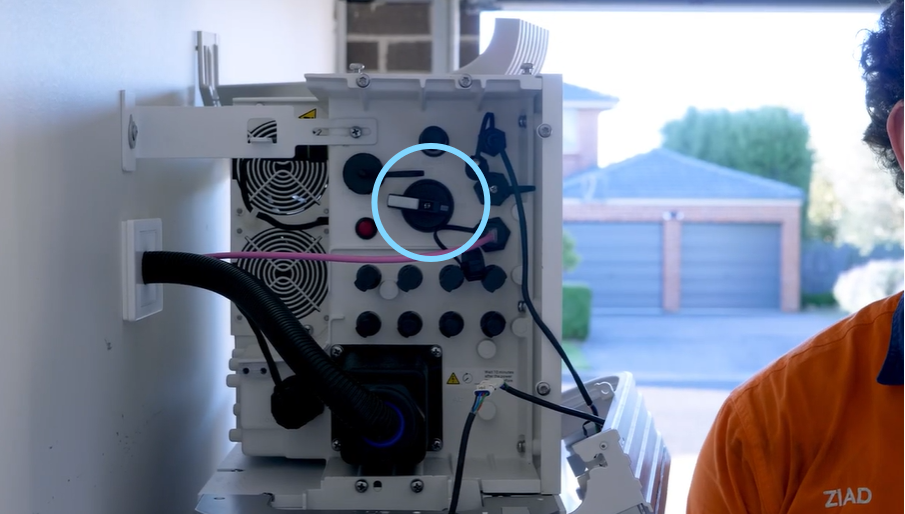
- Find the PV array DC isolator, also called the DC switch, and move it to off. It is stiff, but it will move. If it is already off, leave it off.
- Find the red on/off switch and hold it in for 3 seconds. The system shuts down fully. You know it is off when all the lights on the front of the inverter go dark.
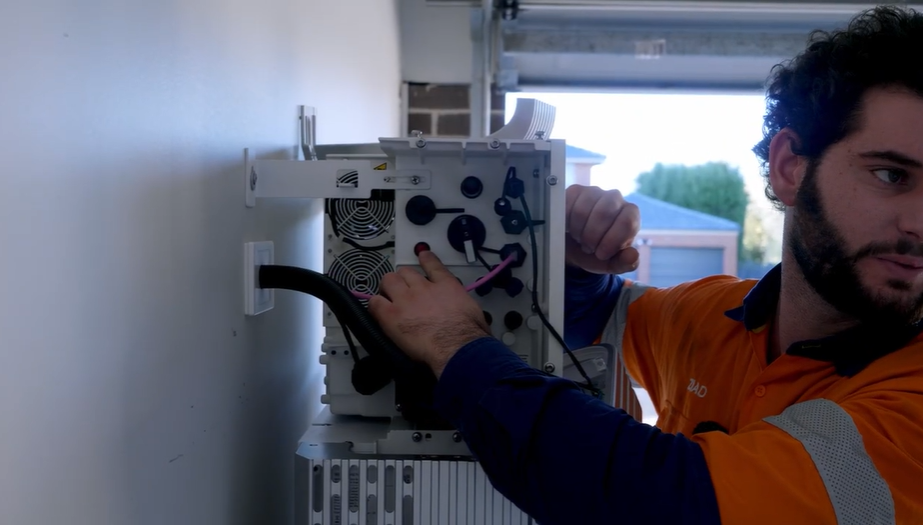
Turn the system back on by reversing those steps:
- Press and hold the red button for 3 seconds.
- Turn the DC switch back on.
- Turn the battery system circuit breaker, or AC isolator, back on.
Wait one minute, then run the reconnection process again.
How do I put the covers back on?
Once your system is back online, refit the covers. Each one uses plastic forks that locate onto metal screw heads.
- Right-hand side cover: line the forks up on the screw heads and push down.
- Left-hand side covers: both go back the same way, forks onto screw heads.
- Top cover: locate the forks onto the screw heads, sit the cover on top, sit it forward slightly, then push it to the rear.
That is the whole job. If you are unsure or get stuck on any of these steps, watch the video below or feel free to give our customer support team a call.
Frequently Asked Questions
Why did my Sigenergy SigenStor disconnect from Wi-Fi?
The usual cause is a change to your home network rather than a problem with the battery. Changing your Wi-Fi password, renaming your network, or replacing your router all break the saved connection. Your SigenStor keeps working the whole time. It simply stops sending data to the app until you reconnect it.
How do I reset the Wi-Fi settings on my SigenStor?
Open the mySigen app, tap Settings, then select Local Connection. Scan the larger top QR code on the battery, choose your home network from the list, enter your Wi-Fi password and tap Join. When it connects, tap Finished. Your system should show as online again within a few minutes.
What should I do if my SigenStor won’t reconnect to Wi-Fi after following the steps?
If your phone reports it failed to connect to the battery’s hotspot, power cycle the system: turn off the AC supply, the DC switch and the red on/off switch, then reverse the order to turn it back on. Wait one minute and try again. If it still will not connect and you suspect a fault rather than a network issue, then call our customer support team for a hand.